





After months of extensive coding, testing and redesigning, the Bramble Berry Soap App is ready to relaunch. Did you know that you can have the power of Bramble Berry’s Lye Calculator in the palm of your hand? This app works on a myriad of devices (iPad, iPhone and Android), and it’s accessible anywhere (no wi-fi or internet connection necessary!). Below is a step-by-step tutorial so you can use the app with ease. (Psst…If you are an Android user, this blog post will help you out.)
Welcome to the Soap App. This new and improved app makes your cold process and liquid soap recipes accessible, and gives you the ability to add new ones, take photos of batches and keep up with the cure date on your batches. To start, click on the ‘Recipe List’ button in the upper left hand corner.
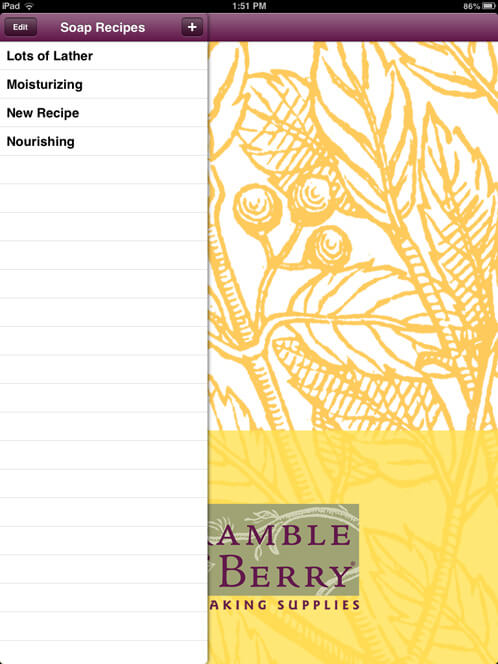
When you click on the ‘Recipe List’ button, it will bring up a side menu of all the recipes you’ve ever entered into your app. When you install the app, there won’t be much. To help you out, I’ve actually included three of my favorite cold process recipes you can find here. To create a new recipe click on the ‘+’ button.
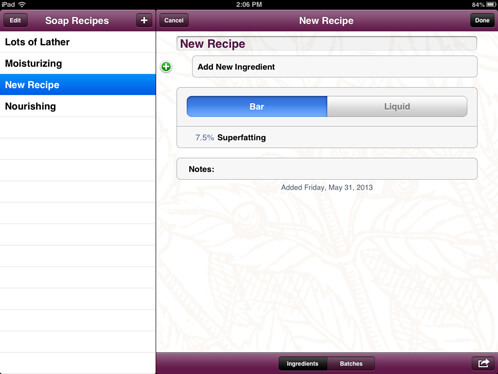
Clicking on the ‘+’ button will bring up a new recipe sheet where you can name your creation, change the superfat level and input your ingredients. With this app you have the ability to calculate the amount of lye and water you’ll need for your cold process soap recipes, as well as liquid soap recipes.
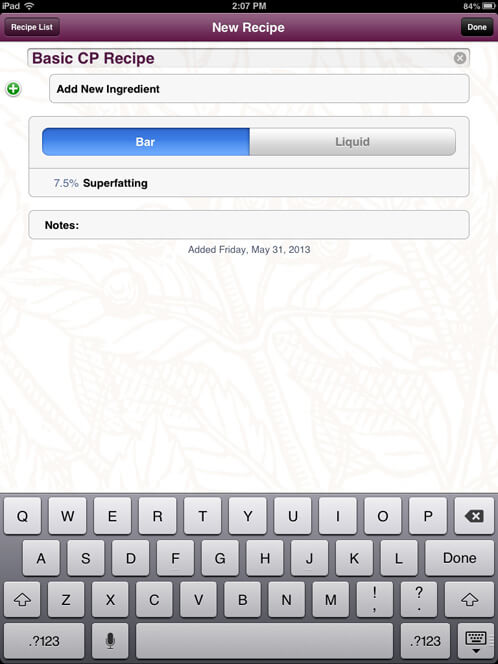
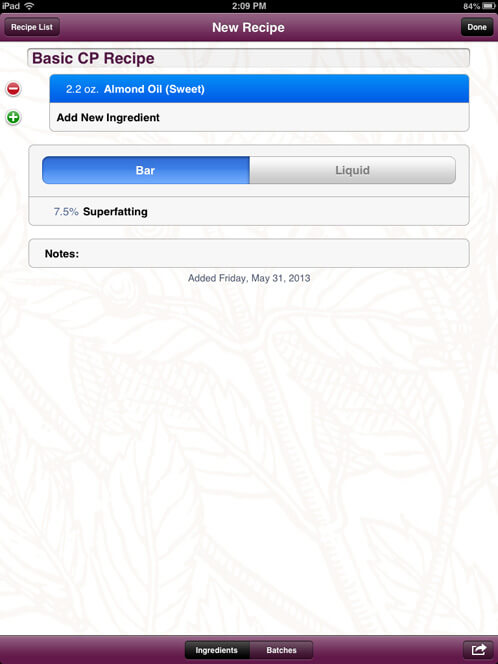
For the sake of this tutorial, let’s use the basic cold process recipe from this blog post. We’ll call it the ‘Basic CP Recipe’. Before you go any further, make sure the tab that reads ‘bar’ is highlighted blue. This is important because we’re making cold process soap, not liquid soap.
To add a new ingredient, click the button that says ‘Add New Ingredient’ at the top of the page. A list of all the ingredients in Bramble Berry’s online lye calculator will appear. Find the first ingredient you want to add to your soap. In my recipe, it’s the Sweet Almond Oil. Once you’ve selected the ingredient, add the amount (2.20 oz) and click the ‘Done’ button.
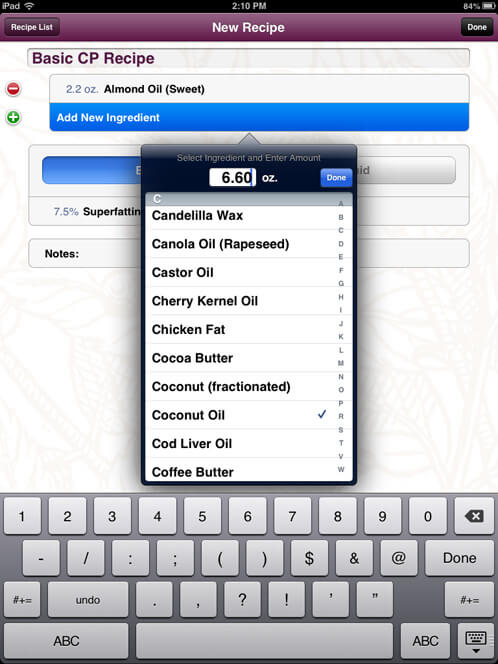
Take note when adding ingredients to your recipe that there is a check mark next to the ingredient you’re adding. If you don’t click on an ingredient before you click the ‘done’ button, the lye calculator will not calculate the correct amount of lye and water for your recipe. To add the next ingredient in this recipe, select the Coconut Oil and enter in 6.6 oz.
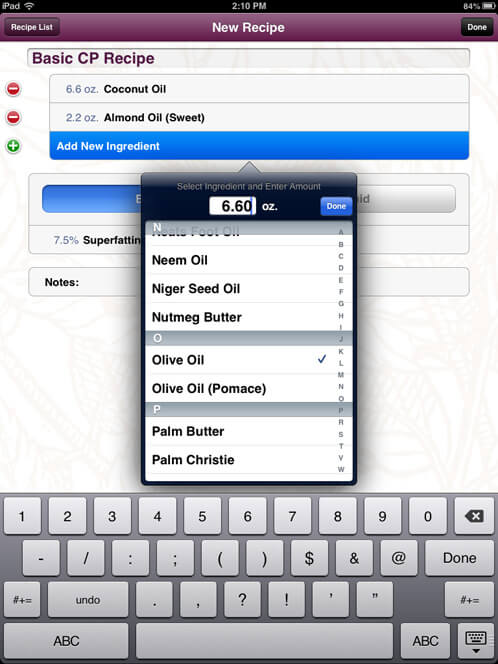
We’re almost done entering our recipe — only two more ingredients! Add 6.6 oz of the Olive Oil (be sure take note that there are two different types of Olive Oil listed on this calculator, the Olive Oil Pomace and the Olive Oil Pure). In this case we are using the Olive Oil (Pure), which allows you more time to make fun swirls and designs.
The last ingredient to input into is 6.6 oz of the Palm Oil. While in the editing screen, if you need to change any of the ingredients or if you added one on accident, click the little red circles on the left hand side of the screen to remove it.
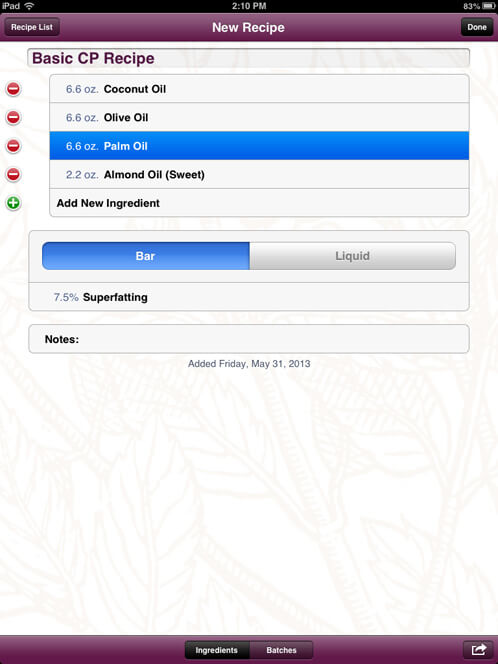
The next step is to change your superfat level. The default superfat in the app is 7.5%, so be sure to change it to the amount you want. Most people superfat anywhere from 2% – 10% in their soaps, but for the sake of this tutorial, let’s use 5%. For more on superfatting soap, check out this blog post.
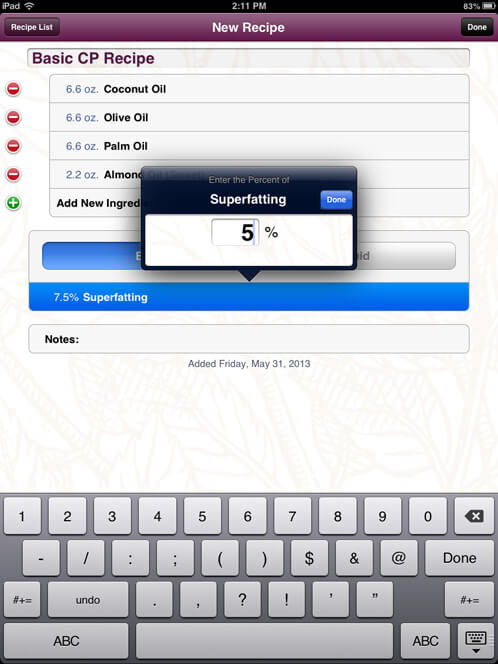
You’re now done inputting your recipe (woo-hoo)! Make sure everything on your recipe is complete and click the ‘Done’ button in the upper right hand corner. If you have forgotten something or need to edit your recipe, you can click the ‘edit’ button to make any changes.
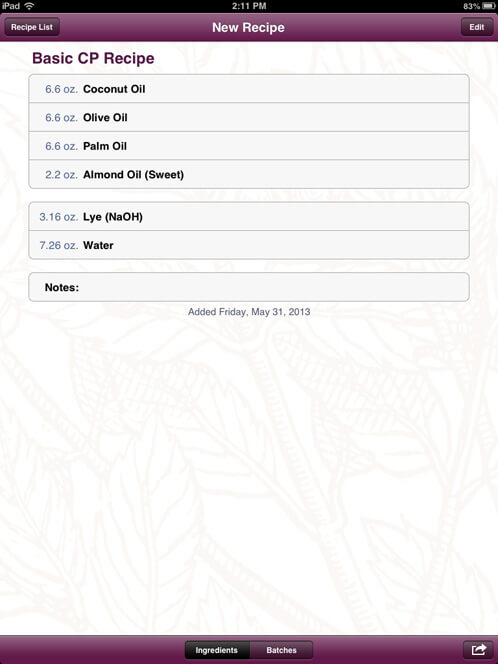
Did you know that you can now print and e-mail these recipes? In the bottom right-hand corner of the app, there is a small arrow you can click to print from your device or e-mail the recipe to share it with your soapmaking friends!
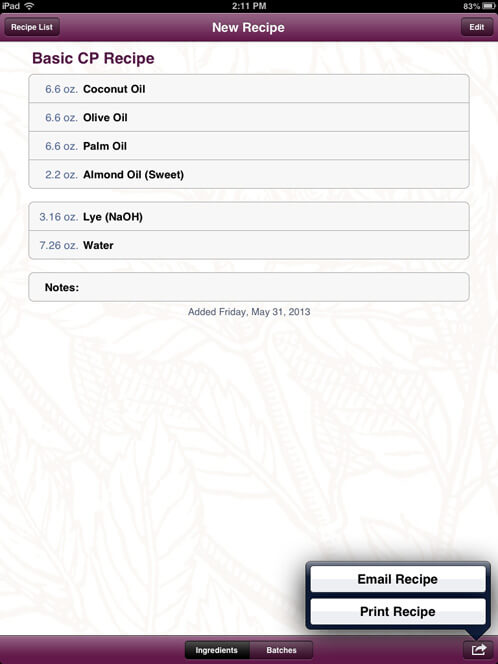
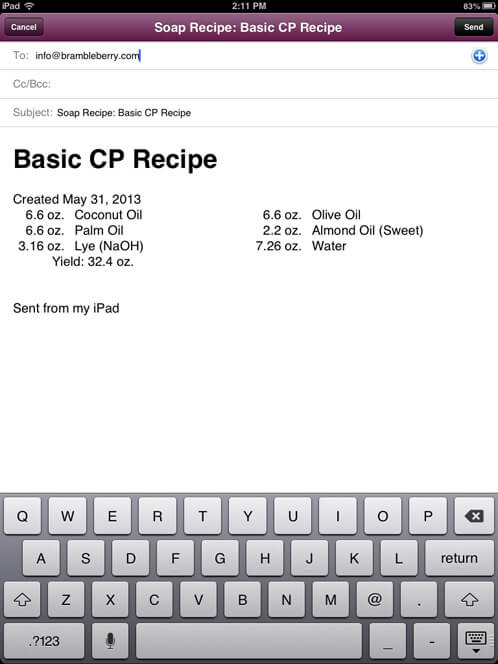
Tap the arrow in the lower right hand corner of the screen and click the ‘Email Recipe’ button. Once you’ve done this, it will input the entire recipe into an email (including date, yield, any notes you may have made and the ingredients).
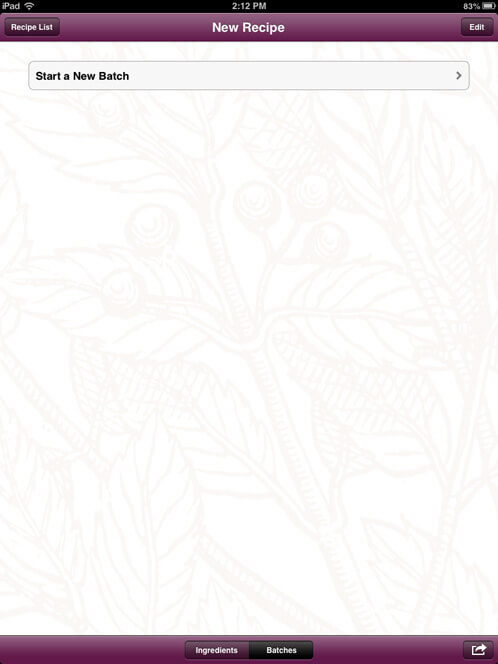
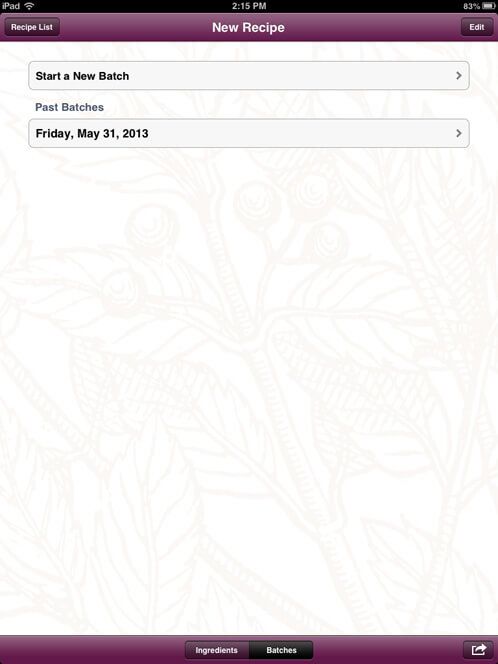
Need to remind yourself when your soaps are done curing? No problem! At the bottom of the screen you will see two buttons — click the one that says, ‘Batches’. This will bring you to the page that looks like the image below. Click on the button that says ‘Start a New Batch’
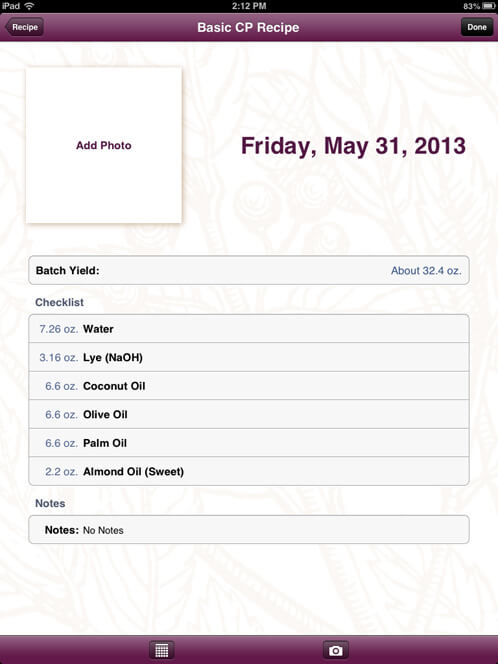
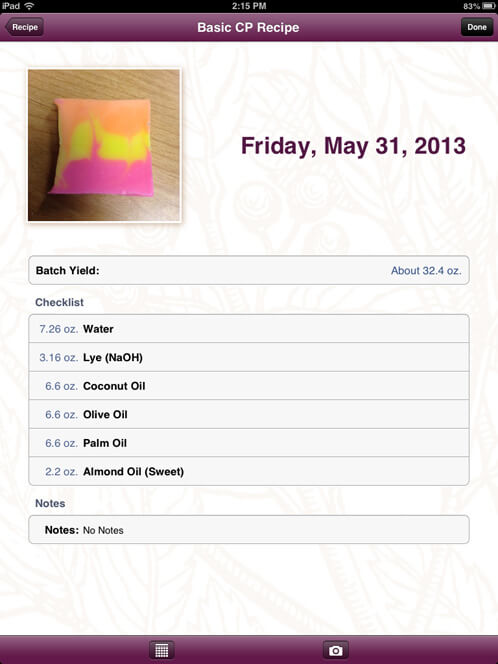
This will bring you to a screen that sets a new batch reminder. This reminder will list your entire recipe and any notes you’ve made. You can even use your device’s camera to add a photo of the finished soap. This is a great way to keep track of each recipe you’ve made without keeping track of paper notes.
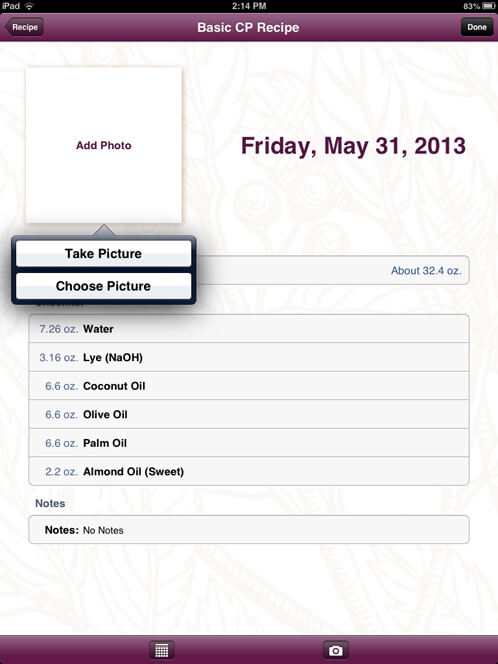
To input a photo of your soap, click the ‘Add Photo’ box. Two options will appear: ‘Take Picture’ and ‘Add Picture’. If you’ve already taken a picture of your soap, you can retrieve it from your camera roll and upload it to your recipe. For the sake of instruction, let’s take a new photo and upload it.
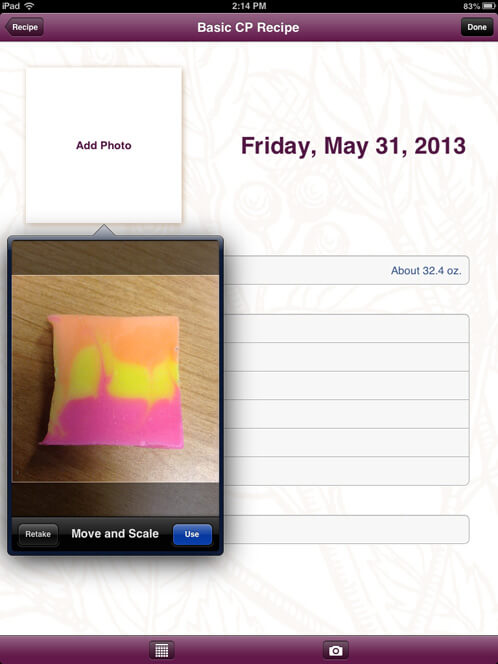
Go ahead and click the ‘Take Picture’ option; it’s as easy as 1, 2, 3…soap! If you’re unhappy with the picture you can always retake it, but let’s go with the first picture. Be creative with your pictures and try taking some new angles, different lighting and various setups. For tips on photographing your products, check out this guest post on the Soap Queen blog. Once you’ve taken the picture, move and scale it in the photo box until it’s perfect. Then, click the ‘Use’ button.
You’re almost done! Make sure you have added any notes about your batch (like fragrance information, color, temperature, any alternative liquids etc…) and confirm that you have taken a picture of your soap. Once you’ve double-checked and confirmed this, you can go ahead and push the ‘Done’ button in the upper right hand corner of the screen.
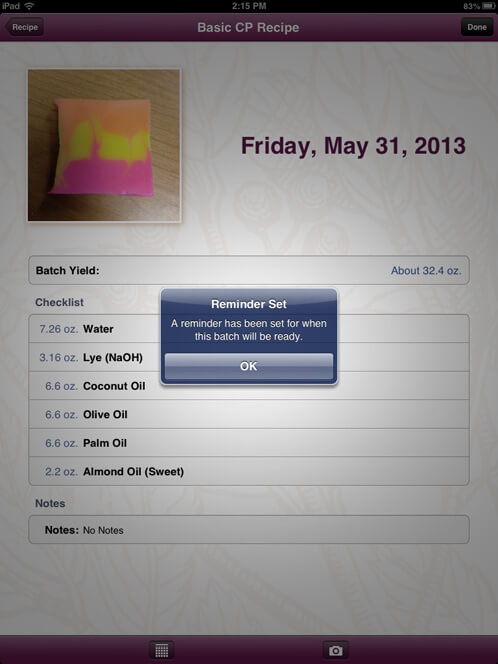
As soon as you’ve clicked on the ‘Done’ button, a handy little reminder box will pop up on your screen letting you know that a reminder has been set on your device to notify you when it has finished curing. No more having to remember when you made the soap — this app will do it for you!
If you want to look at all the different batches of the ‘Basic CP Soap‘ (or another recipe you input into the Soap App), you can access them by clicking on the ‘Batches’ button at the bottom of the screen. This will bring you to a page that will list all the batches of a particular recipe. You can even leave notes about how the recipe performed and the colorants and fragrances you used.
How to Add Notes:
Do you wish you could add notes to your recipe about how it turned out or what colors or scents you used? Now you can! To add any notes to your recipe, click the ‘Edit’ button in the upper right hand corner of the screen.
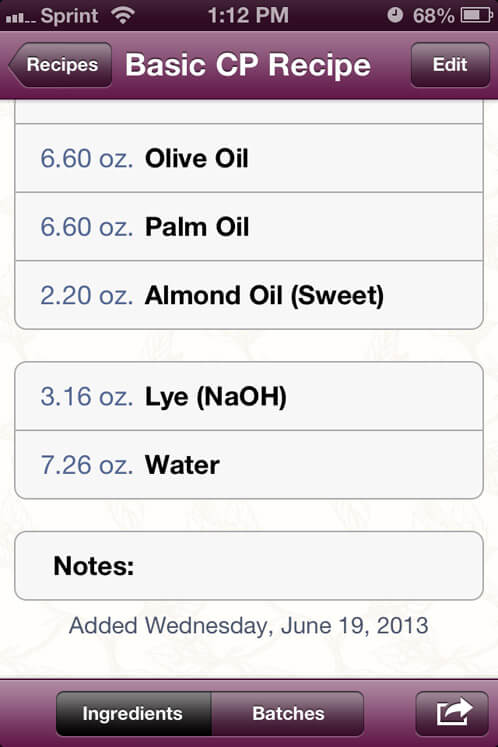
Once you’ve clicked that button, you can edit your recipe as well as adding any notes about your particular soap recipe. Did you use Lemongrass or Lemongrass Sage in your batch? Did you have any notes about how it turned out? Did you use an alternative liquid (like beer or goatsmilk)? Now you can add any extra information, along with your recipe, all in one place! Click on the ‘Notes’ (right above the date) section to add any information you would like about your soap.
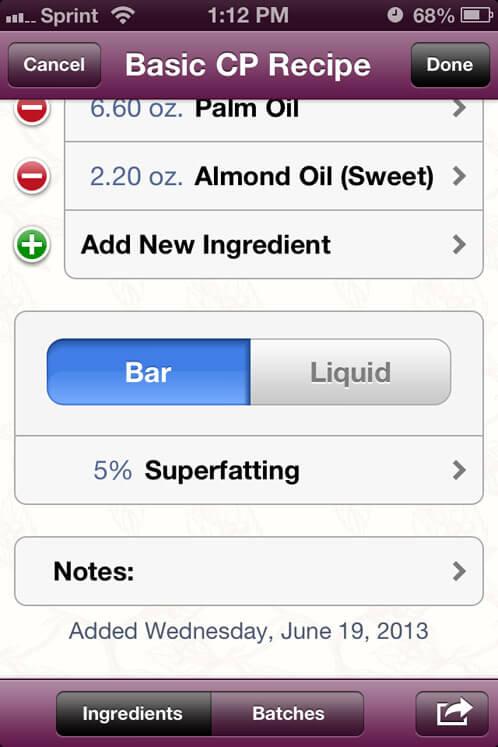
Using your device’s keyboard, you can information about the characteristics of the recipe. Is it super skin-loving? Write it down! Did the fragrance oil accelerate trace? Make a note of it! This is a great tool for any notes you made while soaping. Feel free to make it as detailed as possible as there aren’t any character limits.
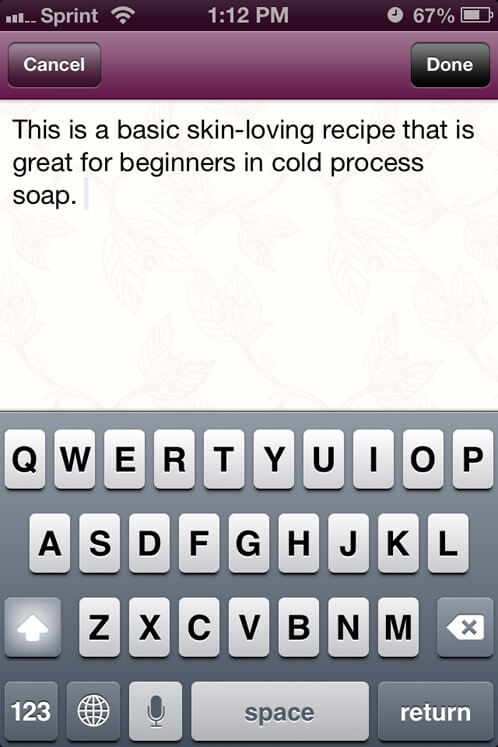
Once you have finished making your notes, click the ‘Done’ button in the upper right hand corner of the screen, and it will bring you back to the editing screen. If there isn’t anything else you’d like to change, click the ‘Done’ button again and you are finished!
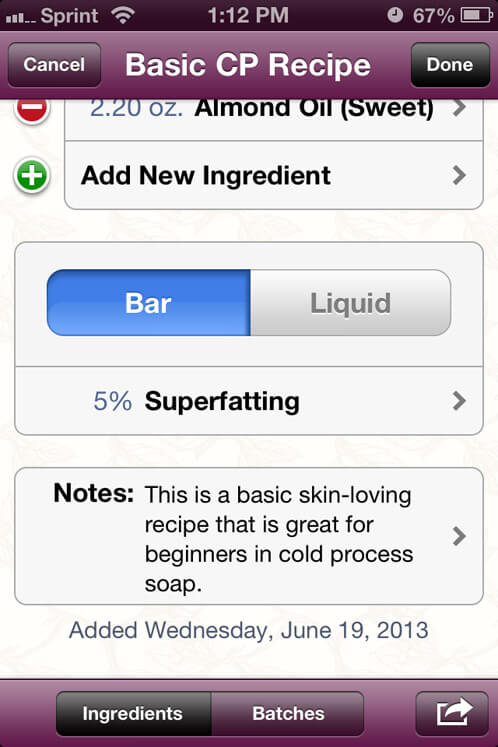
And there you have it. An easy, no-stress way to keep track of any of your cold process or liquid soap recipes and calculate lye and water amounts for your soap recipes on the fly. You just learned how to use your mobile device to soap on the go. No more sitting down at the computer to input your recipes — now you the power in the palm of your hand. If you are not a customer who uses US measurements, you can actually take a look at the Yes, It Has Metric blog post to learn how to change your measurement settings.
If you’ve used the Bramble Berry Soap App, we’d love to hear from you! What do you like about it and how has it changed your soaping?
